Dashboard Home
The main page of the dashboard contains a summary of recent disbursement activity and key performance metrics, scoped to the distribution account(s) currently selected in the account picker.
This includes:
- Successful payment rate: The percentage of payments completed successfully (pending payments are not counted as successful).
- Successful payments: The total number of payments that have been successfully made.
- Failed payments: The total number of payments that failed to process.
- Canceled payments: The total number of payments that were canceled before being sent.
- Remaining payments: The total number of payments that are scheduled but haven't been processed yet.
- Total balance: The combined live balance of the selected distribution account(s), broken down by asset.
- Total disbursed: The total amount of funds successfully sent to receivers by an organization over time.
- Recipients: The total number of unique individuals you have created payments for.
- Recipient wallets: The wallets your recipients receive funds into. This usually equals the number of recipients, but a recipient can hold multiple (one wallet per wallet provider they register with).
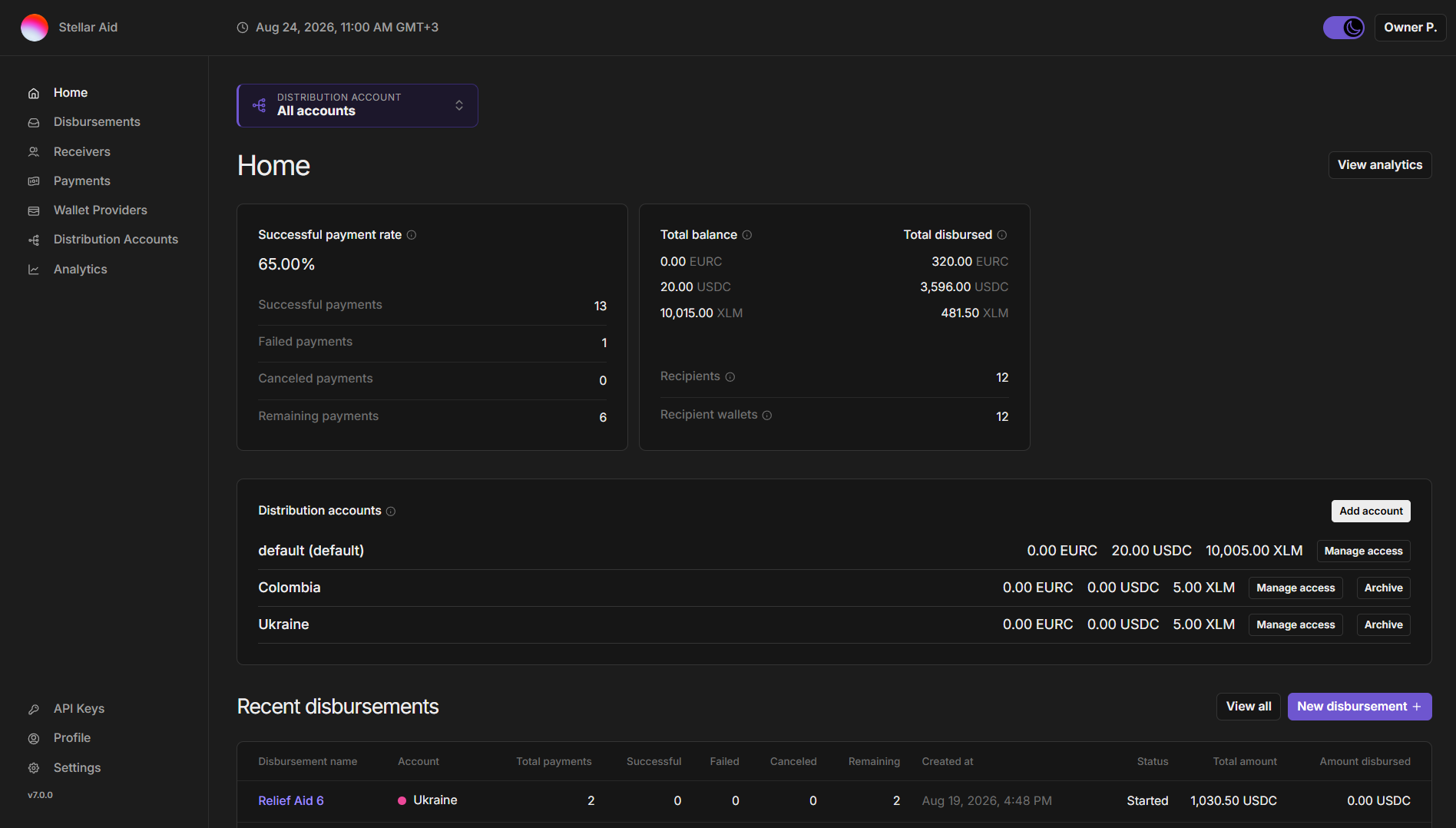
On the left side of the Stellar Disbursement Platform dashboard is the organization logo and tabs to help you navigate through the platform.
They include:
- Home: This is the main dashboard that provides an overview of your organization’s activities.
- Disbursements: This section shows you the history and details of all disbursements.
- Receivers: Lists of individuals who are set to receive disbursements.
- Payments: Here you can find the history and granular details of all payments.
- Wallet Providers: The wallet applications your recipients can receive funds into (e.g. Beans App).
- Distribution Accounts: The accounts your organization sends funds from, with their balances and trustlines.
- Analytics: Data visualization tools to help you analyze your disbursements and payments.
- API Keys: Create and manage keys for programmatic access to the SDP. Only visible to the Owner and Developer roles.
- Profile: Manage your personal and organizational information.
- Settings: Adjust the settings of the SDP according to your preference.
Some tabs are hidden depending on your role; you only see the sections your role can open.
The dashboard also shows a Recent Disbursements list, providing a quick snapshot of your most recent disbursements.
Each entry shows:
- Disbursement Name: The unique name given by your organization to the disbursement operation.
- Account: the distribution account from which the disbursement was made. Shown only when 'All accounts' is selected and your organization has more than one account.
- Total payments: Total number of payments within the specific disbursement.
- Successful: Number of payments that have been successfully sent from the SDP Distribution Wallet to receiver wallets so far.
- Failed: Number of payments that failed to process.
- Canceled: Number of payments that were canceled before being sent.
- Remaining: Number of payments that are scheduled but haven't been processed yet, usually because the receiver has not yet set up a wallet.
- Created at: The time and date the disbursement was created, displayed in your local timezone.
- Status: The current status of the disbursement.
- Total amount: The total value of the disbursement in the appropriate asset.
- Amount disbursed: The amount of the disbursement that has been successfully paid out so far.
Managing Distribution Accounts
The home page lists each distribution account you have access to, with its live balance. Owners manage the organization's accounts from here.
Adding an Account
Owners can add a distribution account using Add account. Give the account a name that identifies what it is for, since that name appears in the account picker and against every disbursement it funds.
The new account is created and funded automatically. It starts with no balance of your disbursement assets, so fund it before using it for payouts. Adding accounts is available to organizations whose distribution account is held in the SDP's database vault; see Distribution Accounts.
Managing Access
Access to each account is granted separately from a user's role. A user needs both a role that permits an action and access to the account they are acting on.
Owners use Manage access on an account to see who currently has access and to grant or revoke it. When granting access, you choose the role that user holds on that account.
Some grants have no effect, because the user's organization-wide role already excludes the action. The dashboard flags these as you choose, so you can pick a role that does what you intend.
Owners always have access to every account and do not appear in the access list.
Archiving an Account
Owners can archive an account that is no longer in use. Archived accounts stop accepting new disbursements, but their history remains visible so past disbursements and payments still show the account that sent them. Archived accounts are never deleted. The option only appears once your organization has more than one account.
The default account cannot be archived. Changing which account is the default is currently only possible through the API.